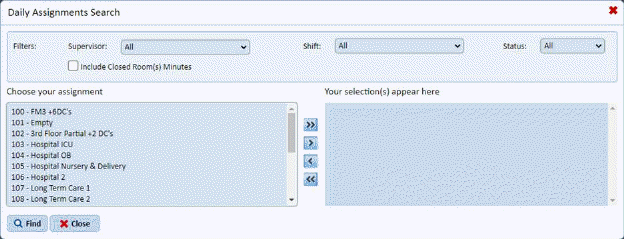
Below are the steps to add duties to an assignment:
1. You can use the Find Icon while viewing the list of daily assignments which will display the page below:
2. Select and assignment and use the Arrow buttons to move them the sleections window and then clcik “Find”. Your assignment(s) chosen will display in the list.
NOTE: If you wish to display the Daily Assignment with the closed room minutes inbcluded in the total minutes please check the box provided.
3. Select and open the assignment you want to change. You should see a figure like the one below:
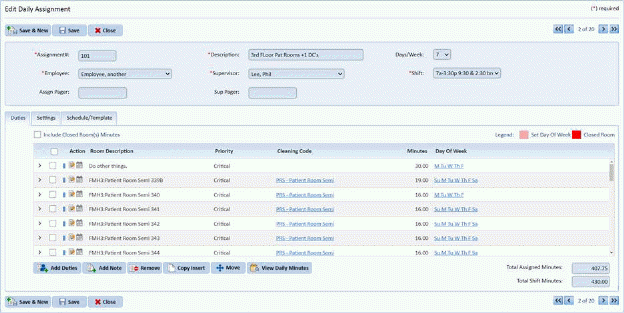
Below is a figure showing a populated Duties Tab:
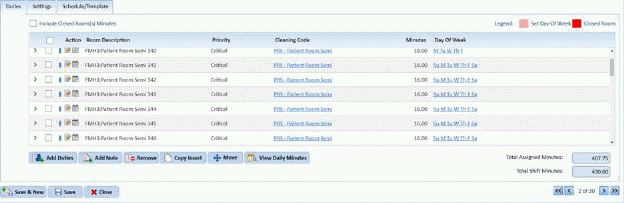
4. Click
on the Add Duties button  in the
Duties Tab. You should see the figure like the one below:
in the
Duties Tab. You should see the figure like the one below:
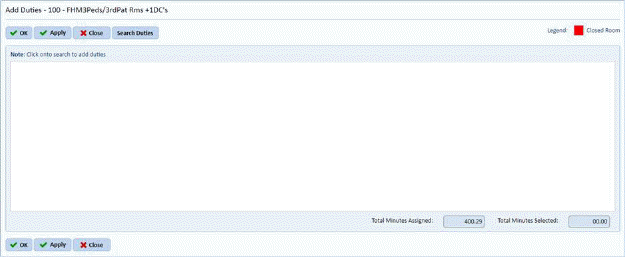
5. Click
on the Search Duties button  to open
the figure below:
to open
the figure below:
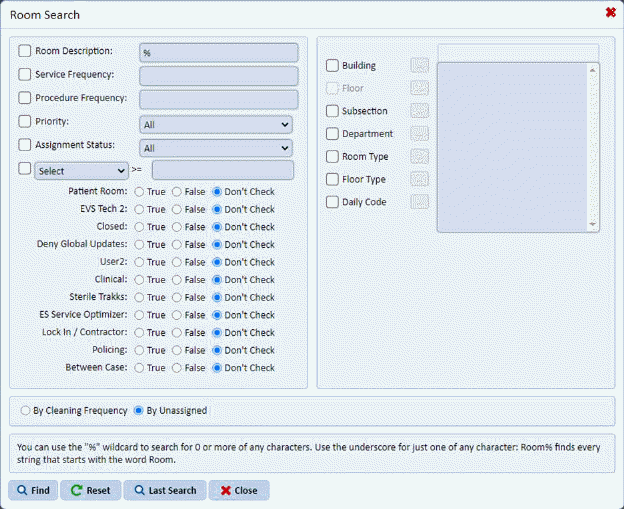
6. Specify the criteria for the rooms that you want to include in the assignment. Choose the building/floor, subsection, room type, etc. that you want to include in the assignment. You can specify based on the cleaning frequency or based on whether the rooms are unassigned.

The criteria for setting limits the number of rooms are shown in the table.
7. Click
on the Find button to open the figure like
the one below:
to open the figure like
the one below:
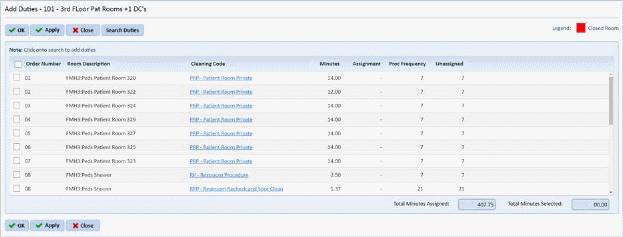
8. The checkboxes before the Order Number allows the user to select the rooms he/she wants to add in the assignment as shown in the figure below:
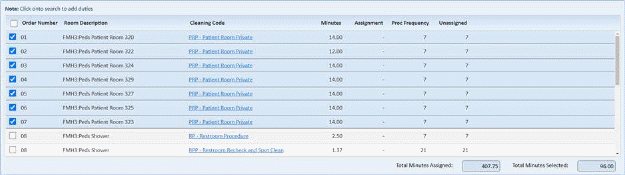
Notice that the total time increases as the user selects more rooms.

NOTE: Filling in the check box left of the Order Number column allows the user to "select" that room.
9. When
you are satisfied with the rooms you have selected for the assignment from the
selected subsection, click on the Apply button  . This will put the "checked" rooms into
the assignment.
. This will put the "checked" rooms into
the assignment.
10. If you want to add other rooms from other subsections, just make changes the criteria from the form below (Search Duties button):
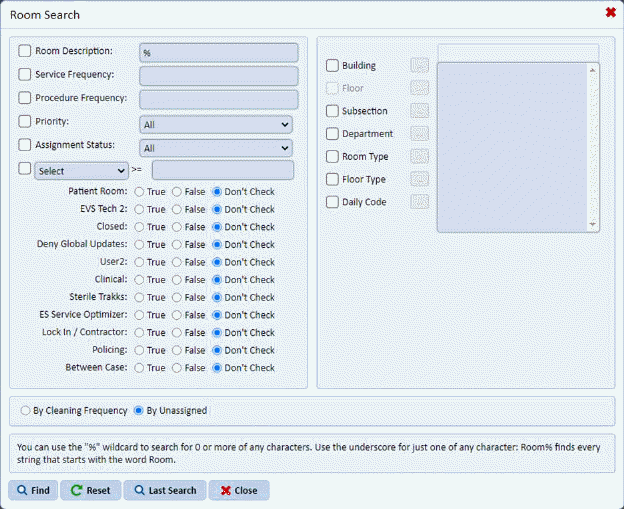
The room listing in the table will change depending on the criteria you specify.
11. Repeat steps 3 through 8 for all other duties/rooms you want to add to your assignment. Please keep track of the Total Minutes Assigned and the Total Minutes Selected.
12. If you are satisfied with the rooms you have selected, click on the OK button.
13. The rooms or new duties you have selected will be added to the bottom of the list in the duties tab.
14. If you are
satisfied with the changes, click on the Save button . Otherwise, click on the Undo
button
. Otherwise, click on the Undo
button .
.
15. Repeat steps 1 through 12 for all other assignments you wish to modify with new duties.